 Updated
Advanced Flatbeds
Version 1.0.2Updated Sep 16, 2026
Standalone rollback and tow-bed system for FiveM. Rolling and static beds, world UI, winch, and 60+ pre-configured trucks.
12 servers running this now·80 players on those servers·Seen on 18 servers overall
CFX.re sign-in is required so Tebex can deliver to your Keymaster account.
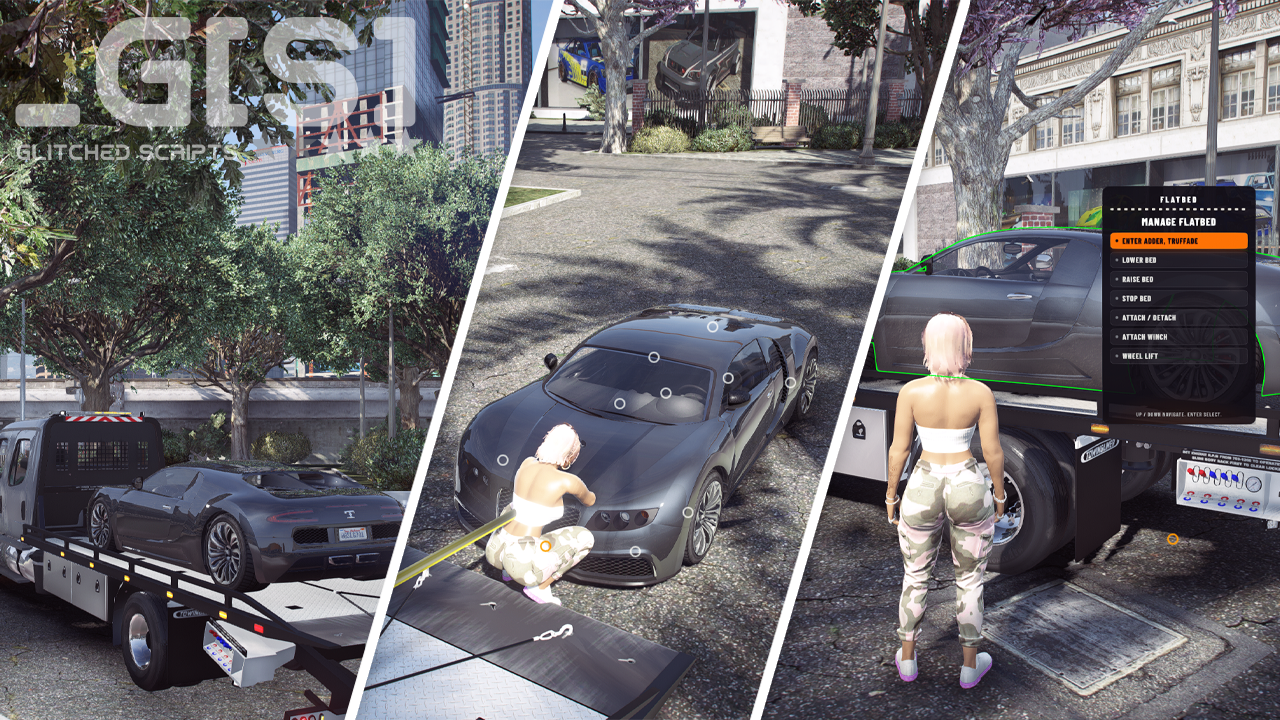
GS Flatbeds (gs-flatbeds) is a standalone rollback and tow-bed system. Players lower the bed, winch a vehicle on, lock it in place, all from a simple world UI. More than 60 trucks are pre-configured. Add your own in Config.Vehicles.
Rolling beds, static decks, and winch trailers all use the same system. Walk up to the interact point (or stay in the cab) and the world UI opens. Hook the cable by hand, wind it in, and the vehicle attaches automatically when it is in place, or manually control it. You can also drive the vehicle onto the bed and attach it directly from the driver seat.
Bed position, cargo, winch, extras, and wheel-lift are synced for every player. State bags keep the network light. Vehicle keys are detected automatically (or you can modify to fit your own needs). If your truck is not in the list, run /flatbedsetup yourself, or contact me and I will be happy to configure it for you.
Beds
Every kind of flatbed
Rolling and static all use the same system. Every entry in
Config.Vehicles can be edited: interact point, cargo pose, ramp
bone, and winch.
Lower a rolling ramp and lock a car on. Drive onto a static deck using the load-zone chevron. You can also drive the vehicle onto the bed and attach it from the driver seat.
UI
World UI
When Config.AutoDisplayDUI is true, a world UI appears at the
interact point. Use the arrow keys to move, Enter to select.
From the same UI you can move the bed, attach a vehicle, wind the winch, and
toggle a wheel lift. Set AutoDisplayDUI to false if you would
rather press the interact key to open the UI.
Winch
Hook, wind, attach
Grab the cable, walk to a bumper or chassis bone (all bone names can be configured), and hook it when the marker highlights. Wind and unwind from the UI or the keybinds.
The vehicle can auto-attach when it reaches the stop distance, or you can
attach it yourself. The cable can hook again when you unload. Turn the
whole winch off with Config.WinchEnabled.
Setup
Flatbed offset editor
Use /flatbedsetup to place the control point, select bed bone
(optional), vehicle attach offset, load zone, and select the winch bone
(optional) and winch detect distance. A ghost vehicle and free camera help
you line things up. When you finish, the resource prints a
Config.Vehicles block and copies it to your clipboard.
Missing a model from the bundled list? Add it with this command, or send it over to me and I will set it up for you. Walkthrough:
Flatbed setup
Additional Info
- Cab controls from the driver seat
- Wheel-lift door toggle on supported models
- Warp into vehicle on the bed when you have keys
- Static load-zone chevron that turns green when you are in range
- Optional roof / extra mode instead of a ramp bone
- Keys pre-bundled and auto detected, or create your own solution
- Job gate in server/edit.lua
- Works alongside gs-trailers
- Network-synced bed, cargo, winch, extras, and wheel-lift
- Locales: en · es · pt · de · fr · pl
- 60+ bundled truck configs. Add more with /flatbedsetup, or ask on Discord
Requires: ox_lib
Optional: qbx_vehiclekeys / qb-vehiclekeys / qs-vehiclekeys / wasabi_carlock / mk_vehiclekeys / MrNewbVehicleKeys, or your own hooks in client/edit.lua
- Complete checkout with CFX.re sign-in
- Grab the resource from Keymaster
- Follow the install guide